📌Key Takeaways
- The best phone is one that matches your comfort level and needs
- iPhones are generally easier for tech-newcomers due to simpler interface
- Look for large screens (5.5"+), good battery life, and hearing aid compatibility
- Start with essential features and learn more as you get comfortable
- Family support and proper setup make all the difference
The Journey to Finding the Perfect Phone
The phone question at retirement age usually starts with something small. A device that exists mainly for one daily call. A restaurant menu read at arm's length because the text is too small. Hearing aids that pair cleanly with a handset—or refuse to. Grandchildren who increasingly live on video calls.
Take Eleanor, an 82-year-old widow who recently got her first smartphone. "I was terrified," Eleanor said. "My kids kept telling me how much easier it would make things, but I just didn't want to learn something new. Then my grandson showed me how to video call with my granddaughter, and that changed everything."
Her hesitation is common. People often resist at first, then settle on the handful of features—a weekly video call, medication reminders, a way to summon help—that earn the phone a permanent spot.
Smartphone Adoption Among Seniors
According to Pew Research, 61% of adults aged 65+ now own a smartphone, up from just 18% in 2013. More seniors are discovering the benefits of staying connected.
Why Seniors Need Smartphones
Staying Connected
Smartphones help seniors:
- Video chat with family: See grandchildren grow up, attend family events virtually
- Stay in touch: Text, call, or message loved ones anytime
- Share photos: Capture memories and share them instantly
- Join communities: Connect with friends, hobby groups, and support networks
Health and Safety
- Emergency services: Call for help instantly
- Medication reminders: Never miss a dose
- Health monitoring: Track blood pressure, heart rate, sleep
- Fall detection: Some phones and watches can detect falls
Convenience and Independence
- Navigation: Get directions anywhere
- Ridesharing: Order Uber/Lyft with ease
- Shopping: Grocery delivery, online shopping
- Entertainment: Books, music, videos, games
Types of Phones for Seniors
1. Simplified Phones (Flip Phones)
What they are:
- Basic calling and texting only
- Large, tactile buttons
- Simple menus with few options
- Exceptionally long battery life
- Often have emergency SOS button
Best for:
- Seniors who only need calling/texting
- Those resistant to technology
- Anyone overwhelmed by smartphones
- Seniors with severe vision/hearing impairments
Examples:
- Jitterbug Flip2
- Consumer Cellular Link II
- RAZ Memory Phone
- Alcatel Go Flip
Pros:
- Very easy to use
- Long battery life (days between charges)
- Inexpensive
- Durable
Cons:
- No apps or internet
- Limited features
- Can't video chat
- Limited camera quality
2. Senior-Friendly Smartphones
What they are:
- Full smartphone capabilities (apps, internet, camera)
- Simplified interfaces
- Larger text and icons by default
- Pre-configured so most setup is already done
- Often include senior-focused features
Best for:
- Seniors who want smartphone features
- Those who need simplified navigation
- Willing to learn basic functions
- Want video calling and health apps
Examples:
- GrandPad (tablet-style)
- Jitterbug Smart4
- Samsung Galaxy A Series (with Easy Mode)
- iPhone SE (simple iOS interface)
Pros:
- Full smartphone functionality
- Simplified for seniors
- Good balance of features and simplicity
- Support for essential apps
Cons:
- More complex than flip phones
- Shorter battery life than basic phones
- May require help with setup
3. Standard Smartphones (with Setup Help)
What they are:
- Full-featured smartphones
- Access to all apps and features
- Regular software updates
- Latest technology
Best for:
- Tech-comfortable seniors
- Those who want the latest features
- Seniors with family support for setup
- Those already familiar with smartphones
Examples:
- iPhone 14/15 series
- Samsung Galaxy S series
- Google Pixel series
- OnePlus phones
Pros:
- Most features and capabilities
- Best cameras and performance
- Long software support
- Wide app selection
Cons:
- Most complex option
- Higher price points
- May have unnecessary features
Key Features to Look For
Display and Screen
What matters most:
- Screen size: 5.5" minimum for readability; 6"+ preferred
- Resolution: 1080p or higher for sharp text
- Brightness: At least 400 nits, adjustable
- Text size: Must be easily enlargable (3x standard or more)
- Touch sensitivity: Adjustable for those with limited dexterity
Eleanor's Tip: "Test the phone in the store with your glasses on. What looks good without them might be hard to see with them!"
Buttons and Controls
Factors to check:
- Button size: Large enough for fingers with limited dexterity
- Spacing: Buttons shouldn't be too close together
- Tactile feedback: Should feel when pressed
- Volume buttons: Easy to find and adjust
- Power button: Convenient location
Battery Life
Consider these questions:
- How often will you charge the phone?
- Do you travel or spend time away from home?
- Will you use it heavily for video calls?
Recommendations:
- 3000mAh+ battery for all-day use
- Fast charging capability (25W+)
- Wireless charging (easier for some seniors)
- Battery saving modes
Camera Quality
If you want to take photos/videos:
- Front camera: At least 8MP for video calls
- Rear camera: 12MP+ for good photos
- Optical image stabilization (helps with shaky hands)
- Auto-focus for close-ups
- Flash for low-light situations
Hearing Aid Compatibility
For hearing aid users:
- Check M/T rating (M for microphone, T for telecoil)
- Higher numbers = better compatibility (M3/M4, T3/T4)
- Volume boost features
- Hearing aid mode settings
Accessibility Features
Built-in features worth knowing:
- Screen reader (VoiceOver on iPhone, TalkBack on Android)
- Magnification gestures
- High contrast mode
- Color inversion
- Voice control
- Switch access for limited mobility
Top Phone Recommendations
Best Overall for Most Seniors: iPhone SE (2022/2024)
For someone whose daily routine is a few calls and texts plus a weekly video visit with grandchildren, this iPhone covers all three without a flagship price or screen size.
Why it's recommended:
- Simple, intuitive iOS interface
- Excellent camera system
- Regular software updates (6+ years)
- Great hearing aid compatibility
- Easy to learn with minimal setup
- Compact size, easy to hold
- Affordable compared to flagship iPhones
Considerations:
- Smaller 4.7" screen (some prefer larger)
- Apple ecosystem (better if family uses iPhones)
- No 5G on 2022 model
The payoff is usually the Sunday call: FaceTime configured once during setup becomes a standing appointment, while large-text icons remove the daily hunt for the right app.
Apple iPhone SE 3rd Gen (2022) Unlocked Smartphone
Simple iOS interface, excellent camera, hearing aid compatibility, and 6+ years of software updates in an affordable, compact iPhone. Around $429.
Best Budget Option: Samsung Galaxy A14 5G
This is the pick for a buyer who wants a large screen and 5G under $200 and doesn't mind spending ten minutes turning on Samsung's Easy Mode during setup.
Why it's recommended:
- Very affordable (under $200)
- Large 6.6" display
- 5G capability
- Samsung's Easy Mode simplifies interface
- Good battery life
- Expandable storage
- Decent camera for the price
Considerations:
- Android can be more complex than iOS
- Less software support than premium phones
- Plastic build quality
Samsung Galaxy A14 5G Unlocked Smartphone
Large 6.6-inch display, 5G capability, Samsung Easy Mode, and expandable storage at a budget-friendly price under $200.
Best for Maximum Simplicity: GrandPad
GrandPad answers a slightly different question: what happens when the family, rather than the user, manages the device? It arrives pre-configured, there is no app store to wander into, and a caregiver app controls the contact list.
Why it's recommended:
- Built specifically for seniors
- Pre-configured simplified interface
- Unlimited data included
- Family monitoring app for caregivers
- 24/7 tech support included
- No app store (prevents confusion)
- Large 10" screen
Considerations:
- Requires monthly subscription ($40+/month)
- Tablet form factor (not a phone)
- Limited compared to full smartphones
- No cellular calling (uses data)

GrandPad Senior-Friendly Tablet
Purpose-built 10-inch tablet for seniors with simplified interface, unlimited data, 24/7 tech support, and family caregiver monitoring app. Subscription $40+/month.
Best for Tech-Comfortable Seniors: iPhone 15
The step-up pick for buyers who already know their way around a smartphone—or who want the satellite SOS and crash-detection safety net for solo driving and remote hikes.
Why it's recommended:
- Latest iPhone features
- Emergency SOS via satellite
- Crash detection
- Excellent camera system
- Long software support (6+ years)
- Best for families with iPhones
- Large 6.1" or 6.7" screen options
Considerations:
- High price point ($799+)
- Many features may go unused
- Full smartphone complexity
Apple iPhone 15 Unlocked Smartphone
Latest iPhone with emergency SOS via satellite, crash detection, excellent cameras, and 6+ years of software support. Starting at $799.
Best Android Alternative: Google Pixel 8
The Android pick for people who would rather talk than type: Google Assistant and the Pixel's speech recognition handle much of the day-to-day navigation by voice.
Why it's recommended:
- Clean, stock Android interface
- Excellent camera (especially for night mode)
- 7 years of software updates
- Built-in Google Assistant
- Good speech recognition
- Tensor chip for AI features
Considerations:
- Some setup required
- Android customization can be overwhelming
- Pricey for mid-range
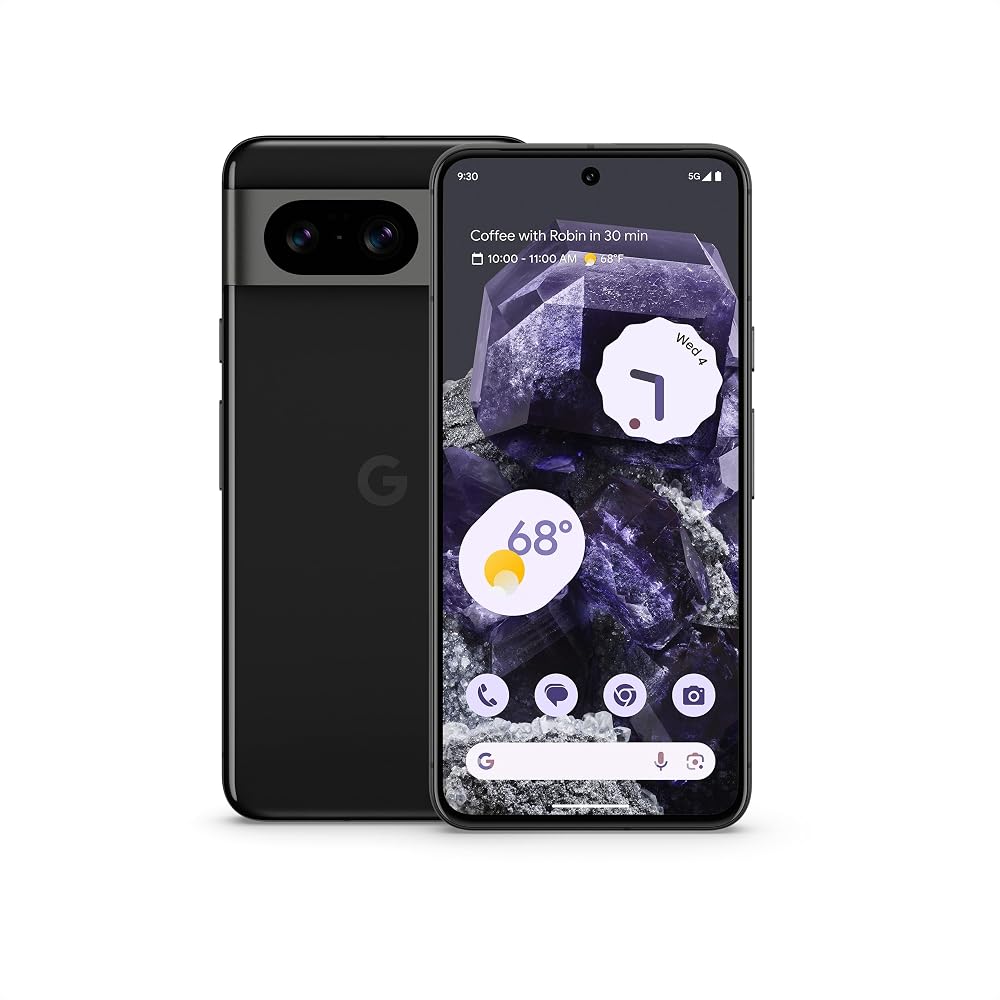
Google Pixel 8 Unlocked Android Smartphone
Clean Android interface, top-rated camera, 7 years of updates, and built-in Google Assistant for easy voice control. Starting at $699.
Best Flip Phone: Jitterbug Flip2
For the person whose phone exists mainly for one daily call, the Flip2 keeps answering, hanging up, and SOS as physical buttons—nothing hidden behind a swipe.
Why it's recommended:
- Large, easy-to-press buttons
- Simple menu system
- Emergency SOS button
- Loud speaker for hearing impaired
- Long battery life (up to 14 days)
- Affordable monthly plans
Considerations:
- No smartphone features
- Limited camera quality
- No internet browsing

Lively Jitterbug Flip2 Senior Flip Phone
Large easy-press buttons, simple menus, emergency SOS button, loud speaker, and 14-day battery life on this senior-friendly flip phone.
Phone Comparison Summary
Choose based on your needs
- •iPhone SE: Best balance of simplicity and features
- •Galaxy A14: Best budget smartphone
- •GrandPad: Most simplified experience
- •Jitterbug Flip2: Best basic phone
- •iPhone 15/Pixel 8: Best for tech-savvy seniors
Essential Setup for Seniors
Step 1: Accessibility Settings
iPhone Settings to Turn On:
- Large Text: Settings > Display & Brightness > Text Size
- Bold Text: Settings > Display & Brightness > Bold Text
- Increase Contrast: Settings > Accessibility > Display & Text Size
- Touch Accommodations: Settings > Accessibility > Touch
- VoiceOver: Settings > Accessibility > VoiceOver (for visually impaired)
Android Settings to Turn On:
- Font Size: Settings > Display > Font Size
- Bold Text: Settings > Display > Bold Text
- Magnification: Settings > Accessibility > Magnification
- TalkBack: Settings > Accessibility > TalkBack
- Live Transcribe: Settings > Accessibility > Live Transcribe
Step 2: Safety Features
Set up emergency access:
- ICE Contacts: Add "ICE" (In Case of Emergency) contacts
- Medical ID: iPhone: Health app > Medical ID; Android: Settings > About phone > Emergency information
- Emergency SOS: iPhone: Hold side button + volume; Android: Press power button 5 times
- Fall Detection: Apple Watch or Pixel Watch
- Location Sharing: Share location with trusted family members
Step 3: Family Setup
Apple Family Sharing:
- Share photos, calendar, reminders
- Family member can help with settings remotely
- Purchase sharing for apps and media
Android Family Link:
- Manage screen time and app usage
- Location tracking
- Approve app downloads
Must-Have Apps for Seniors
Communication
- FaceTime: Best for iPhone users
- WhatsApp: Free calls/messages worldwide
- Facebook Messenger: Video calls with friends
- Zoom: Group video calls with family
Safety
- Life360: Family location sharing
- Noonlight: Emergency response app
- First Aid: Red Cross emergency guide
- Medisafe: Medication reminders
Health
- Apple Health: Track health data (iPhone)
- Google Fit: Track activity (Android)
- Heart Rate Monitor: Measure heart rate
- Sleep Cycle: Track sleep quality
Convenience
- Uber/Lyft: Ridesharing
- Instacart: Grocery delivery
- Google Maps: Navigation
- Audible: Audiobooks
Phone Plans for Seniors
What to Look For
- Data amount: 2-10GB usually sufficient for basic use
- Coverage: Works in your area
- International: If you travel abroad
- Customer support: Easy-to-reach help line
- Device payment: Flexible payment options
Senior Discount Plans
- AT&T: 65+ plans with 2 lines for $60/month
- Verizon: 55+ plans in select states
- T-Mobile: 55+ discounts on Magenta plans
- Consumer Cellular: Senior-focused plans starting at $20/month
- Jitterbug: Plans designed specifically for seniors
Tips for Saving Money
- Start with a basic plan and upgrade if needed
- Look for family plans if other family members use the same carrier
- Consider refurbished phones to save on upfront costs
- Ask about AARP or senior discounts
Overcoming Common Concerns
"It's too complicated"
Solutions:
- Start with a simplified phone if unsure
- Learn one feature at a time
- Focus on essentials first (calls, texts, video chat)
- Find a patient teacher (family member, friend)
- Write down steps for common tasks
- Use sticky notes on the phone for reminders
"I'll break it"
Solutions:
- Get a protective case and screen protector
- Purchase insurance through your carrier
- Learn basic care (keep away from water, don't drop)
- Most phones are durable—you'd have to try hard to break one!
"I don't need all those features"
Solutions:
- Choose a simpler phone or simplified mode
- Don't download unnecessary apps
- Use only the home screen for essentials
- Hide unused apps in a folder
- Focus on what you'll actually use
"My eyes/hands aren't good enough"
Solutions:
- Increase text size to maximum
- Use voice commands (Siri, Google Assistant)
- Try a stylus for precision
- Consider a phone with a stylus (Samsung Galaxy)
- Use reading glasses!
Learning Resources
In-Person Help
- Apple Store: Free workshops for seniors
- Senior centers: Technology classes
- Libraries: Tech help sessions
- Carrier stores: Personal setup assistance
Online Resources
- YouTube: Search for "senior smartphone tutorials"
- Senior Planet: AARP's digital literacy website
- AARP Technology Resources: Guides and tips
- Consumer Reports: Phone reviews for seniors
Books
- "My iPhone for Seniors" by Gary Rosenzweig
- "Android for Seniors For Dummies"
- Large print editions available
When to Upgrade Your Phone
Signs it's time for a new phone:
- Battery doesn't last a full day
- Apps crash frequently or won't update
- Screen is cracked or too dim to see
- Phone is slow and unresponsive
- Security updates are no longer available
- You need features your current phone doesn't have
FAQ: Senior-Friendly Smartphones
Q: What's the easiest smartphone for seniors? A: For most seniors, the iPhone SE is the easiest due to its simple iOS interface and excellent accessibility features. The GrandPad is also very easy but is a tablet, not a phone.
Q: Do I need a data plan? A: Yes, smartphones require a data plan for internet access, apps, and video calling. Basic plans start around $20/month.
Q: Can I use my hearing aid with a smartphone? A: Yes! Most modern smartphones are hearing aid compatible. Look for phones with M3/M4 and T3/T4 ratings.
Q: How much should I spend on a smartphone? A: You can get a good smartphone for $200-$400. Flagship phones cost $700+, but most seniors don't need all those features.
Q: What if I need help setting up my phone? A: Ask family members, visit an Apple Store or carrier store, or contact your carrier's tech support. Many senior centers also offer help.
Q: Can I keep my old phone number? A: Yes! You can usually port your number to a new carrier or phone.
Q: Are there flip phones that can video call? A: Some advanced flip phones offer limited video calling, but for the best experience, a smartphone is better.
Conclusion: Eleanor's Smartphone Success
Eleanor now uses her iPhone every day. "I video chat with my granddaughter, check the weather, set reminders for my medication, and even order groceries online," she says. "It's made my life so much easier and more connected. I wish I had done this sooner!"
The right phone is the one that fits the life already being lived—the daily call, the weekly video visit, the menu you can actually read. Match the device to those moments, turn on the accessibility settings during setup rather than "someday," and ask for help before frustration sets in.
Your Smartphone Action Plan
1. Decide what you need (calls only vs. video chat vs. full features). 2. Test phones in stores if possible. 3. Choose a plan with good coverage and customer support. 4. Ask family or a tech-savvy friend to help set it up. 5. Learn one feature at a time. 6. Enjoy staying connected!
Smartphone Accessories for Seniors
Essential Accessories
1. Large Button Cases:
- Make buttons easier to press
- Provide better grip
- Protect your phone from drops
2. Screen Protectors:
- Prevent scratches and cracks
- Some offer glare reduction
- Fingerprint-resistant options available
3. Phone Lanyards:
- Keep your phone handy
- Prevent accidental drops
- Many stylish designs available
4. Portable Chargers:
- Charge on the go
- Compact sizes for easy carrying
- Essential for long outings
5. Amplified Speakers:
- Improve sound quality
- Helpful for video calls
- Some connect wirelessly
6. Reading Glasses with Phone Holders:
- Combine two essentials
- Keep your hands free
- Adjustable for different viewing distances
Eleanor's Must-Have Accessories
"I use a large button case and a lanyard," Eleanor says. "The lanyard keeps my phone around my neck, so I never misplace it. And the case makes the buttons easier to press. I also have a portable charger for when I'm out and about."
Troubleshooting Common Smartphone Issues
Battery Life Problems
Issue: Battery drains quickly Solutions:
- Turn off unused features (Bluetooth, Wi-Fi when not needed)
- Reduce screen brightness
- Close apps running in the background
- Enable low power mode
- Replace old batteries
Touchscreen Not Responding
Issue: Screen doesn't register touches Solutions:
- Clean the screen with a microfiber cloth
- Remove screen protector if it's damaged
- Restart your phone
- Check for software updates
Can't Hear Calls
Issue: Difficulty hearing during calls Solutions:
- Adjust volume settings
- Use speakerphone
- Connect hearing aids via Bluetooth
- Clean speaker grills with a soft brush
Apps Crashing
Issue: Apps close unexpectedly Solutions:
- Update the app to the latest version
- Clear app cache and data
- Restart your phone
- Check for available storage
Eleanor's Troubleshooting Tip:
The fix that resolves most everyday glitches is the oldest one in the book: turn the phone off and back on. If that does not work, call the person who helped with the initial setup—talking it through together clears up most of what remains.
Smartphone Safety Tips for Seniors
Protecting Your Personal Information
1. Use Strong Passwords:
- Use a mix of letters, numbers, and symbols
- Enable Face ID or Touch ID if available
- Don't share passwords with anyone
2. Be Wary of Scams:
- Don't click on suspicious links
- Don't give out personal information over the phone
- Verify requests before responding
- Install a reputable antivirus app
3. Enable Find My Phone:
- Helps locate lost or stolen phones
- Can remotely lock or erase data on a missing phone
4. Keep Software Updated:
- Updates include security fixes
- Enable automatic updates
- Set a reminder to check for updates monthly
5. Share Location with Trusted Contacts:
- Let family know where you are
- Useful in emergency situations
- Many phones have built-in location sharing features
Smartphone Security Checklist
✓ Set a strong passcode ✓ Enable two-factor authentication ✓ Keep software updated ✓ Install security apps ✓ Be cautious of suspicious links ✓ Don't share personal information
If setup feels like too much, ask for help before you leave the store. Test candidates in person at a carrier shop, bring along the family member who will field the follow-up questions, and choose the device that matches what you will actually do with it—not the longest feature list.